Author: derivingdynamics

Azure Logic Apps|synchronizing Teams with Blob storage

Hello Dynamics Enthusiast,

Working on cutting Edge technologies like Azure Logic Apps and contributing to the Dynamics community keeps me energetic. So Here I am, to provide you a step by step guide to sync Teams and Blob storage using Azure Logic Apps.  

Scenario: I came across a requirement where client wants synchronization between Teams and blob storage which should enable end user to attach file to Teams and attached file should be stored into Azure Blob Storage automatically.

Prerequisites: Azure Subscription, Storage Account in Azure Portal.

I am using trigger as SharePoint: When a file is created in folder because Teams Files are stored in SharePoint.It is easy to access the attached SharePoint site for the Teams.

Follow the below steps to achieve the objective.

#1: Logic Apps Blank Template creation

  • Sign in to the Azure portal with your Azure account credentials.
  • Go to the ‘Resource group’.(Either create a new ‘Resource group’ or use an existing one).
  • Create Logic app with blank Template.
  • Search for SharePoint trigger SharePoint: When a file is created in folder.

#2: Enter trigger information

  1. Site Address : Enter your share point site address.
  2. Folder Id : Browse the folder where the teams files are stored in share point.

Refer the below screen.

#3: Search for the blob storage action. I chose Create Blob action.

#4: Enter the action information.

  1. Select the folder path from blob storage (I chose container of blob storage. You can choose container or a folder within a container.)
  2. Select the Blob name.
  3. Select the Blob content.

Below is the summary screen of the Logic Apps to give you a better view.

Executed Logic Apps

Testing: It is important to test whatever you configured. So follow the below steps to validate your configuration.

#1: Before uploading the file, Teams and Blob storage view are as below.

Screen from Teams Before uploading the file.
Screen from Blob storage before the test execution.

#2: Upload a file in Teams.

While uploading the file in Teams
uploaded file

#3: Same file should be replicated in Blob Storage for successful validation of the configuration.

Bingo! Team and Blob synchronized successfully.

Hope it helps to some extent.

May the Dynamics Power be with you!

Azure Logic Apps:When a HTTP request is received|used case[Biz talk Server integration with Dynamics 365]

Hello Microsoft Enthusiast,

Azure is LCNC(low-code/no-code)development platform.There are several triggers available.It is always exciting to work and explore them.So I am demonstrating one of them i.e. When a HTTP request is received.

Scenario: This is the integration between Biz talk Server and Dynamics 365. Azure Logic Apps listens Biz talk Server whenever it receives JSON object and perform the further crud operation. My scenario operation is : If Account exists in Dynamics 365 then update the Account’s address details based on the received ‘Account Number’ from the biz talk server’s request in the Logic Apps.

Let’s start as follows:

#1: Create a logic apps with the template: ‘When a HTTP request is received’. When you click on ‘Save’ button endpoint will be generated automatically and click on ‘Use sample payload to generate schema’.After this a window will popup, paste the JSON(It is prerequisites for you and will differ case to case.) in pop-up window. In this way, ‘Request Body JSON Schema’ will get structured automatically.

Some of the sensitive data has been hidden in some of the screen shot.

#2: Initialize the variable for ‘Account Number’ and ‘Account ID’. Query the ‘List records’ to check whether the Account is present or not in Dynamics 365 based on the received Account Number from Biz talk request.

#3: loop the received input in ‘For each’ loop. Put the condition where Account Number is equal to Biz talk Account Number.

#4: If condition is true then set Account’s Guid in Account ID variable and update the address details in Acoount. Refer the below Screen.

#5: Send the ‘200’ Status Code as Response message to Biz talk Server. So that Biz talk get to know that sent request has been processed successfully. 😊

Test: Once Logic Apps received request from Biz talk, It updates Address details of particular Account.

Screen from Dynamics 365

If you want more clarification/information.Don’t forget to comment.I will be happy to assist you. 🙂

Hope it helps to some extent.

May the DynamicsPower be with you!

Azure Logic Apps|used case[Dynamics 365 Integration with HubSpot]

Azure Logic Apps|used case[Dynamics 365 Integration with HubSpot]

Hello Reader,

In my previous post, I had created custom Connector (If you want to see ‘how’ click here) and now time has come to use it. So, here I am integrating Dynamics to HubSpot using Microsoft Azure Logic Apps.

While working with Azure Logic App,you won’t have to write code in many cases. But if you have to, you will create code snippets with Azure Functions and run that code on-demand from Logic Apps.

Detailed steps are as below:

Step 1: Login to portal.azure.com with your credentials and create ‘Resource group’, if you already have one, kindly use that. I have created crm-int-hubspot Resource group for the demo purpose.

Step 2: Create a Logic App and name it as per your wish. Click on ‘Create’ and wait till it get deployed successfully to Resource group. Start with blank Template.

Step 3: Look for the Trigger. In my scenario, I opted Common Data Service then chose the trigger when contacts get created. After that map the dynamics 365 environment’s information accordingly.

Step 4: Now the question arises for connector. There is no out of box connector available yet, Therefore, I have created custom connector in my previous blog, so continuing with it, I selected Hubspot_CreateContact in Custom tab and below it chose Action Create Contact in HubSpot on creation of contact in Dynamics 365 as shown in below screen.

Step 5: Now add the value of HAPIKey (stands for HubSpot API Key,which interact with information and is unique for each instance) and properties. You can add any property which is defined in hubSpot. For the demo purpose, I am taking firstname, lastname and email 🙂

Step 6: Save Logic Apps and test it. 😊

Testing : Log-in to Dynamics 365 and create contact. The same contact will be created in HubSpot. Bingo!

Creating contact in Dynamics 365.
Same created in HubSpot.

With this, I am done with my HubSpot series. Stay tuned to get more live industry scenario.

Hope it helps to some extent.

May the DynamicsPower be with you ! 🙂

Azure Logic Apps Custom Connector|used Case[To create Contact in HubSpot]

Hello Reader,

Have a quick look on how to create Azure Logic App Custom Connector to create contact in HubSpot.

Disclaimer: I am assuming that you are familiar with Azure and have Azure Subscription to login on portal.azure.com with your credentials (If Not, you can comment to get more information/clarification.)

The steps are as follows:

Step 1: Create a new Resource Group if you don’t have, else start with the existing one like me. Go to the Resource Group and add Logic Apps Custom Connector and name your Custom Connector as per your wish and click on “Create”. Refer below Screen. Wait till it get deployed to resource group successfully.

Step 2:  Start with Rest API-end point and OPEN API file

Step 3: Scroll down a bit and fill the Host API base url (Currently working in General Tab) and click on the “Security”, you will be moved to Security tab.

Step 4: I chose No Authentication Since it will authenticate from HAPI key in its next Definition tab. Click on “Definition”.

Step 5: Welcome to Definition tab, Add Action by entering Summary, Description, Operation Id as below:

Step 6: Scroll down a bit within the same page and click on “import form sample” which you can find under ‘Request’.

Step 7: Please remain on the same page, you will get a pop-up window immediately on the right-hand side to fill-in the request information as:

Verb-Post,

URL-https://api.hubapi.com/contacts/v1/contact/?hapikey=demo,

Body

 {   
"properties":
[
{ "property": "email" },
{ "property": "firstname"},
{ "property": "lastname"},
{ "property": "website"},
{ "property": "company"},
{ "property": "phone"},
{ "property": "address"},
{ "property": "city"},
{ "property": "state"},
{ "property": "zip"}
]
}

After clicking on “Import”, the pop-up window will disappear.

Step 8: Click on “Update connector”, and you are good to go with your custom connector. You will get notification” Custom Connector has been successfully updated.”

This Connector will be used in my next blog. Stay tuned to see it in action.

Hope it helps to some extent !

May the DynamicsPower be with you ! 🙂

formContext.ui.formSelector(Client API reference)|used case[Set From based on optionset value in UCI]

Hello Folks,

Is it not a good learning experience,where you do relative comparison? I wrote a JavaScript to understand how formContext.ui.formSelector and its sub property work completely.

Please, take a look on high level overview of formContext.ui.formSelector which is tabulated below.

Scenario: I took the scenario where will set entity form based on option set value.This scenario covers ui.formselector entirely, likewise as:

  1. formContext.ui.formSelector.items.get();
  2. formContext.ui.formSelector.getCurrentItem.getId();
  3. formContext.ui.formSelector.getCurrentItem.getLabel();
  4. formContext.ui.formSelector.getCurrentItem.navigate();

Implementation: Find the code snippet below:

var formContext;
function setForm(executionContext)
{
formContext = executionContext.getFormContext();
if(formContext.ui.getFormType()==1)
{
return;
}
if (formContext.ui.getFormType()==2)
{
var caseType = formContext.getAttribute(logicalname).getValue();
switch(caseType)
{
case 1:
changeForm(“Claim”);
break;
case 2:
changeForm(“Trial Order”);
break;
default:
changeForm(“Case for Interactive experience”);
}
}
}

function changeForm(formName)
{
var currentForm = formContext.ui.formSelector.getCurrentItem();
var availableForms = formContext.ui.formSelector.items.get();
if (currentForm.getLabel().toLowerCase() != formName.toLowerCase())
{
for (var i in availableForms)
{
var form = availableForms[i];
// to find a form based on the name
if (form.getLabel().toLowerCase() == formName.toLowerCase())
{
form.navigate();
return true;
}
}
}
}

Call this function on page load event and make sure that this code is present on all other forms.

Testing: I am creating case record from default case form by putting up case type as Trial order.Once record is saved.It will navigate screen to trial order case form and have similar behavior for claims case form too.

Hope it is informative! 🙂 Keep dynamics-power with you.

Fix – Custom Ribbon Button’s icon is showing as Jigsaw Image in UCI

Hello Everyone!

While I was working on Ribbon Workbench customization, one of my colleague addressed me that custom button icon is showing as jigsaw image in UCI interface whereas button’s icon is showing as desired in classic Interface. My colleague was questioning if it is a Microsoft issue or anything else which is missed to be done?

Workaround:

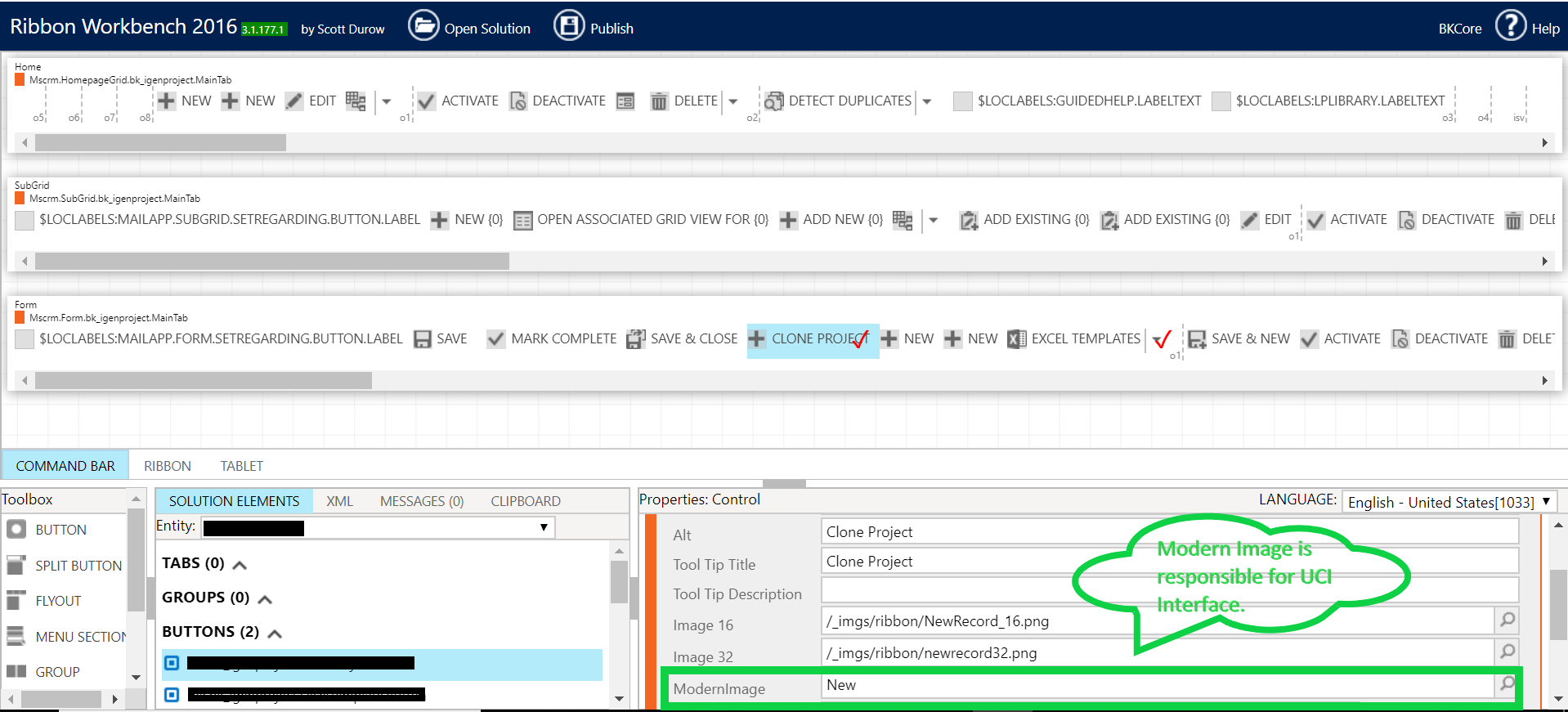
I went to Ribbon Workbench Customization, There I noticed one more new input i.e. ModernImage. Modern Image supports Vector format (SVG) and responsible for UCI(Unified Client Interface) visibility.

Therefore,16X16 image, 32X32 image is responsible for Classic View. Even you can test it at your own. Remove these 16 or 32 png from Ribbon Work Bench then publish it, you will not see them in Classic Interface😊

Fix:

All you need to do it. Create a Vector format (SVG) web resource. Go to Ribbon Workbench, Select your Solution, Browser your SVG icon image under Modern Image and then good to go to publish it.

Hope it helps for quick fix!

5 Interview Questions of Dynamics 365 Customer Engagement

Even though Dynamics 365 Customer Engagement is being changed a lot. Perhaps, some technical questions are pretty basic and commonly asked in most of the interview. I have listed few of them below:   

Question #1: How will you optimized form performance when you have multiple tabs/grids on the entity form.

Answer: While placing sub-grid on form we should unchecked the Expand this tab by default from tab properties. It saves page rendering time and enhance the page load performance.

Question #2: What is the difference between Plugin and Workflow? (Being a developer we always deals with plugin and workflow. So, This is something from which you can’t remain untouched. 😊) 

Answer: Some of the differences are detailed below:

WorkflowPlugin
CompatibilitySynchronous
/Asynchronous*
Synchronous
/Asynchronous
Maintenance Business Users
/Functional Consultant
Technical Consultant
Nested Child Process Yes* No
On Demand Yes No*
Run As Organization
User
Business Unit
Parent:Child Business Units
Organization
User Context
User Impersonation
(To run plugin on
another user context.)
Get External Data No* Yes
Triggers Record is created
Record Status changes
Record is assigned
Record fields change
Record is deleted
Create
Update(Filtering attribute)
Delete
Associate
Disassociate
Status Change
Assign to Owner
Executed After
Save
YesYes
Can run on RelationshipN:1(lookup on the record)1:N

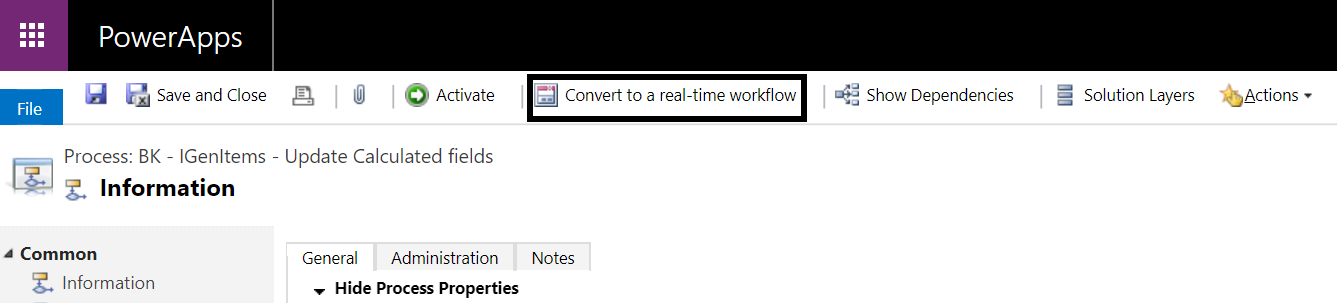
Note Compatibility* : Earlier Workflow was asynchronous until Microsoft enable Convert to a real-time Workflow.

Note Nested Child Process*: Nested Child Process is very useful. Commonly used scenario i.e.to send mail to employee on their birthday.

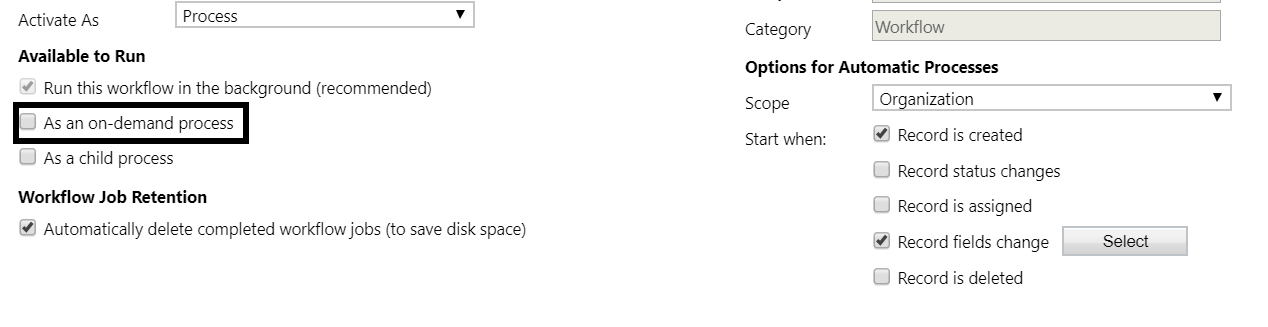
Note On Demand*: Through customization Plugin can also run on demand. Though it requires custom Button where you must write JavaScript function to run it. However, this process take two calls which decreases system performance.  

Note Can run on Relationship*: Workflow cannot automatically update all the contact addresses when the parent account address changes. But this can be done with a plug-in.

Question #3 : What will execute first business rule or java script?

Answers: execution order is defined below:

1.System Java Script(Source code by MS)

2. Custom Java script

3.Business Rule.

Reason: business logic is applied to Business rule will be converted to Java script and then gets executed On other side custom java script doesn’t required any conversion So it saves conversion time and executes first.

Question #4: What are the event pipeline stages and its number?

Answer: Event pipeline stages are 4 and plugin/workflow can register in 3 stages out of 4.

EventStage NameStage No.Description
Pre-Event1. Pre-Validation10It is executed before the
main system operation.
Registered plugin gets
executed before the
database transaction.
Pre-validation stage
occurs prior to security
role check and mainly
used delete plugin
message.
2. Pre-Operation20It is executed before the
main system operation.
Registered plugin gets
Executed within the
database transaction.
Platform Core
Operation
Main Operation30It doesn’t allow to
register custom plugin.
it is the main operation
of System(Source
code by Microsoft)
Post-EventPost-Operation40It is executed after the
main system operation.
It allows to register
custom plugin.
Registered plugin gets
executed within the data
base transaction.

Question#5: What is the time limit of plugin/Custom workflow execution?

Answer: It’s 2 minutes(like Maggie 😊)Irrespective of Synchronous/Asynchronous,There is 2 minutes time limit imposed on execution. If execution exceeds the limit a System.TimeoutException is thrown.

Note: While we code and gets Business Error“This workflow job was canceled because the workflow that started it included an infinite loop. Correct the workflow logic and try again” which is showed 7 iteration steps. Reason being, execution time limit is 2 minutes.

Hope it helps for your new job!

Integartion of Hubspot with Dynamics 365 using Zapier

Hello Everyone,

Earlier I wasn’t known how to integrate HubSpot to Dynamics 365 then I started deep diving into it and come to know there are various methods to do it. These methods are mentioned as below:

  1. HubSpot integration to Dynamics 365 using Zapier
  2. Dynamics 365 CE integration to HubSpot using Logic Apps (If you want to see ‘how’ click here)

Here I will tell you the detailed steps to integrate HubSpot to Dynamics 365 Customer Engagement using Zapier. Zapier is a web automation app and allows HubSpot to connect with several other 1000’s application and technology. With Zapier I will build Zaps which will automate the process. 

Prerequisites: Dynamics 365, HubSpot Instance, Zapier login account

Objective: Contact will be created in Dynamics 365 CE on creation of contact in HubSpot.

Section 1: Connection with Zapier

#1: Login to  https://www.hubspot.com and click on Log in (If You don’t have HubSpot instance, create free trial version of it. (Refer https://derivingdynamics.home.blog/2019/06/09/how-to-subscribe-hubspot-trial-version/)   

#2: Enter Email Address and Password then click on Log in.

#3: On the top, Click to settings,

#4: In left panel, Expand Integrations and click on Apps below API Key.

#5: Click on Connect an app

#6: You will see some recommended apps over here. Though our intended application is Zapier. Click on Zapier you will be navigated to next screen.

#7: Click on Connect. Since it’s not Microsoft Technology. It doesn’t support single sign-on until you sign up with the same account. So, in next screen it will ask you login to Zapier. Here, I am assuming that you have Zapier credentials with you already. If you don’t have. Do sign up and be continued as per below detailed steps.

Now you are connected to Zapier.

Section 2: Making of Zap once you are connected with zapier.

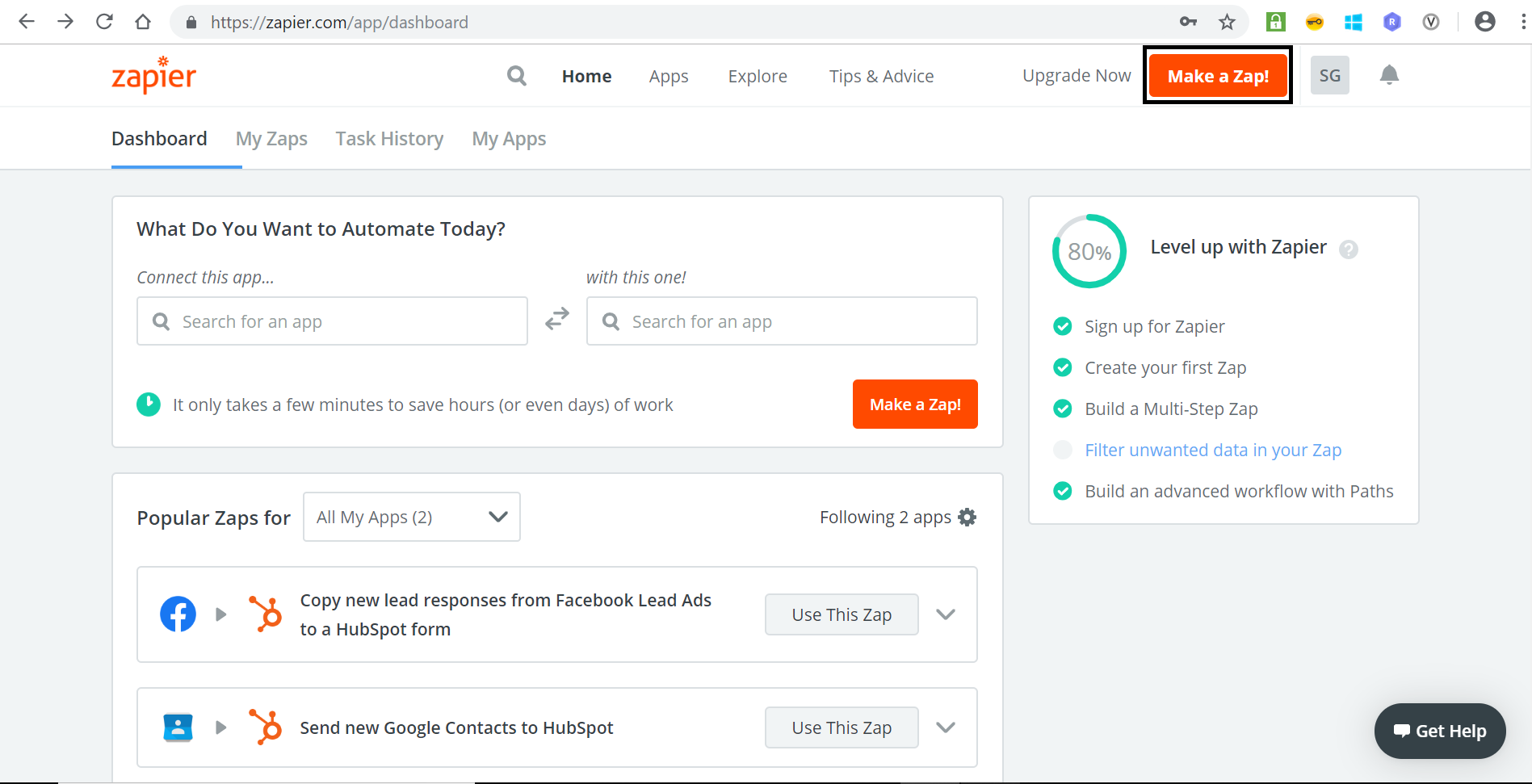
#1: Now you are at Zapier screen where you will create Zap. Click on Make a Zap!

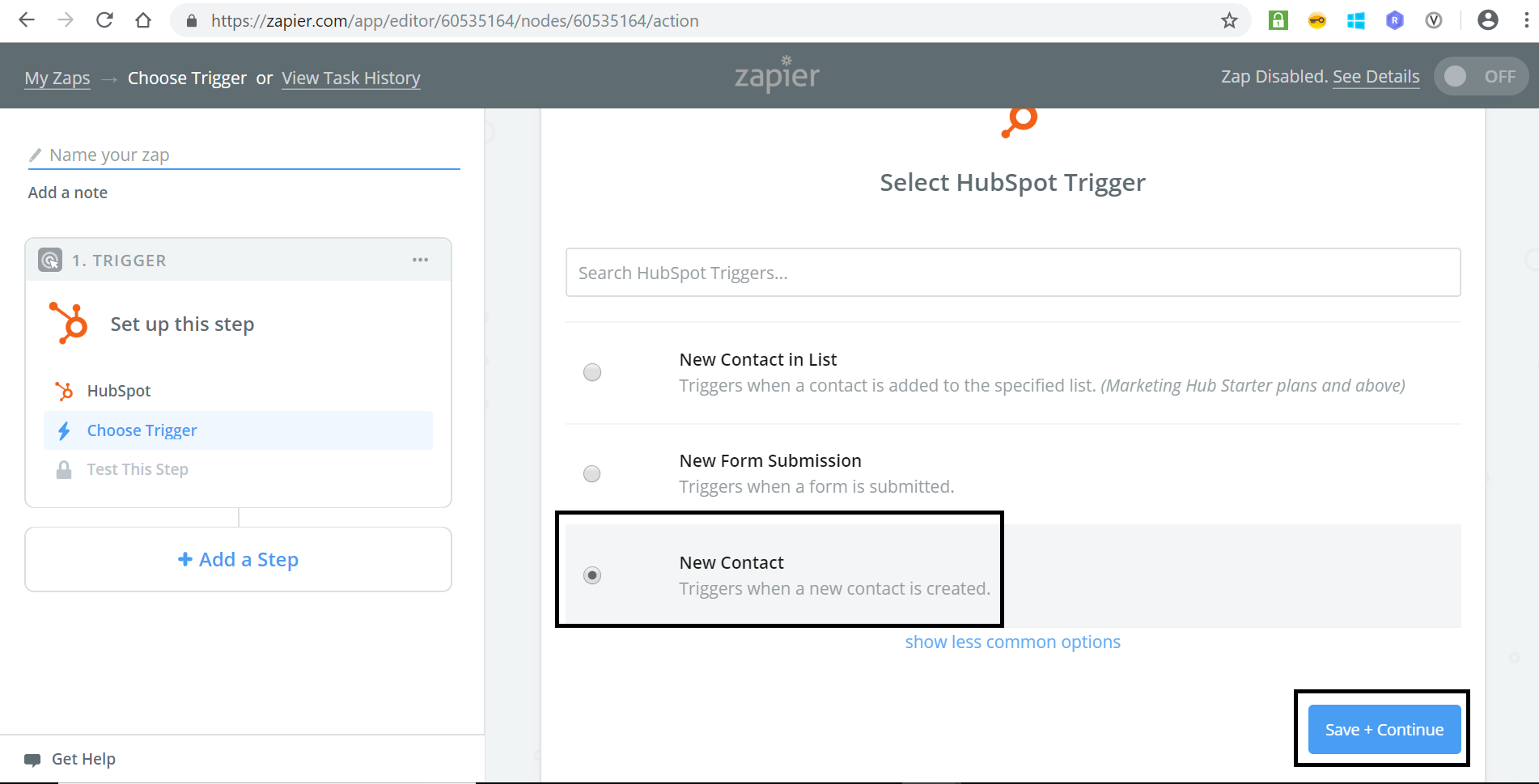
#2: Write name of your zap. I wrote MydemoZap. then choose a Trigger App. I searched for HubSpot and get connected with it.

#3: Choose Trigger. I have chosen New Contact. It triggers when contact is created. Move further, click on Save+Continue.

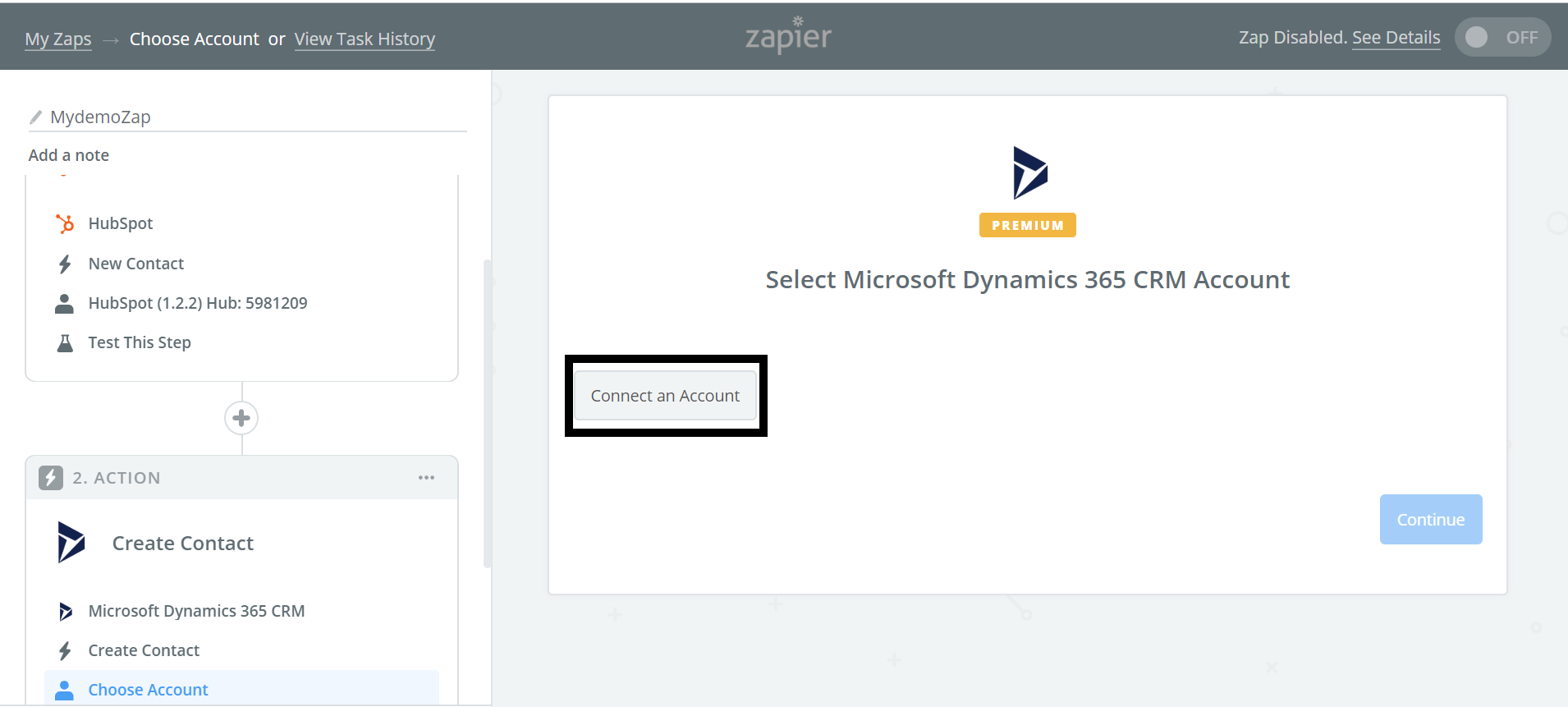
#4: Connect to your HubSpot instance. One screen will pop-up, on click of Connect an Account. it will ask for permission. Click on Grant Access to give permission of HubSpot then this screen will disappeared and you will be on same page, Post that click Save+Continue.

In this step, I am collaborating consecutive screen as below.

Click on Connect an Account
click on Grant access
Click on Save+Continued

Thus you are done with trigger now. 🙂  

#5: Add a new step for Action. Search for Dynamics 365 CRM Action. I have chosen create contact since it is our objective. (Refer objective).Moving forward click on Save+Continue.

#6: Connect to Dynamics 365 CE. Click on Connect An Account. Post that, paste organization url in new pop up screen and click on to Yes, Continue. To authenticate yourself put user credentials and make sure that you are using administrator user. You will be land on same page. Click on Save+Continue.

I have collaborated screen for this step as below:

Click on Connect an Account
Enter Dynamics 365 organization url and click on Yes,Continue
Click on Save+Continue

#7: Edit Template is 2nd last step. As per your requirements map the values in given template. I have mapped for first name, last name and email address. 😊 for demo and click on Continue.

#8: Full and final step is here. 🙂 Click on Finish and Enable your zap at the top on the same page.

We are ready with our integration. Yipee!

Final Result:

I went to HubSpot and created new contact as per below screen:

And same contact is created in Dynamics 365 Customer Engagement.

Limitation: Generally, Business doesn’t permit to use Zapier since Zapier stands with several pricing plans. However, it costs way more to business.

Other than this, the Clock is still ticking for versa data flow from Dynamics 365 CE to HubSpot.

Hope it helps at some extent !

How to subscribe HubSpot trial version

I was assigned a task where business requirements were to integrate HubSpot to Dynamics 365. Being a Dynamics’ folk, I was unknown to the term HubSpot itself and was also like other Dynamics’ enthusiasts who were also new to this term. Then during my research journey, I got to know that it is CRM like our Dynamics 365 CRM or like any other CRM which is present in the market. HubSpot has its two flavors Professional and Enterprise. Marketing Hub Professional and Sales Hub Professional is more advance than Sales Hub Enterprise and Marketing Hub Enterprise.

Since it was POC I don’t have HubSpot instance yet. This was the time when I realized that I should have source(HubSpot) instance first to integrate it with Dynamics 365. It should be my priority to get HubSpot instance ready before starting the actual work.

Here, are the steps to get your HubSpot instance ready.

#1: login to https://www.hubspot.com and on left top, click on Get HubSpot Free button.

#2: Click on Get free CRM

#3: Fill all the details which is required in below screen likewise: First name, Last name, Email address, Password. Post that, Click on Get HubSpot CRM

#4: Enter Website URL and Company Name and click on Save and continue.

Here, you are ready to go and to explore more.!

Since it was prerequisite to start with integration work. So, In my next blog series I have covered “How to integrate HubSpot to Dynamics using Zapier” click here

I am requesting to please be tuned for “How to Integrate HubSpot to Dynamics 365” using several other methods.

Hope it helps!