Author: derivingdynamics

Grid with Icons in UCI

Few prominent icons are added to the column for a better user interface which is also shown in UCI.

Firstly, I dug into SDK, and found displayIconToolTip method which consists of two parameters-rowData and userLCID (Note: LCID is not taken.) as English is the default language of the organization.

Implementation:

Step 1: Take any three pictures of 16X16 .png files and create Web Resource of .png format. If picture exceeds 16X16, it will automatically shrink to 16X16.

Step 2: Navigation: Settings>>Customize the System. In the left panel,Click on Web Resources .Then click on New in right panel.

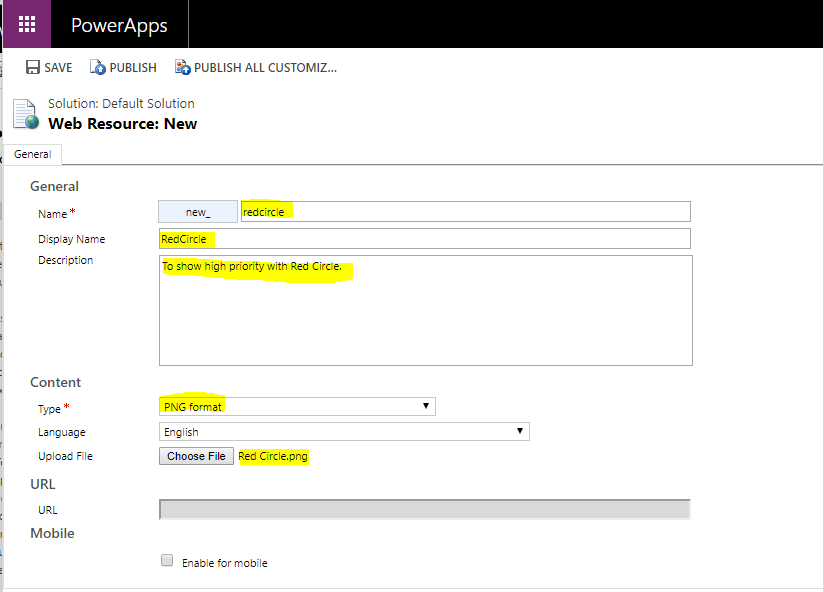
Step 3: Fill Name, Display Name, Description of Web Resource, choose type as PNG format and upload the image as below.

Note: Repeat above mentioned Steps 1 to 3 for rest of the two .png Web Resources.

Step 4: Create JavaScript Web Resource and paste the following code: (Replace imgName as per your wish)

Step 5: Now,Call this function in your respective Views, I have chosen the Active Cases view and selected the priority column.

Step: 6 Click on Change Properties and call your JavaScript Web Resource function as shown below.

Output:

  • On UCI, it will be shown as
    1. SubGrid of Case on Contact:
  • 2.Case Sub grid:
  • On Web Client, it will be shown as

Hope it helps!

How to opt-in April 2019 updates in Dynamics 365

Microsoft has released a preview of its April release on 1st Feb 2019 that allows us the flexibility to explore the features, adoption of all changes and the user experience updates for Dynamics 365 and the Power Platform which will be enabled by default in April 2019.

Note: Once you enable the April 2019 update, it can’t be turned-off.

How to enable the April 2019 updates:

Step1: Go to Power platform Admin center https://admin.powerplatform.microsoft.com , choose the environment to enable the April 2019 updates.

Step2: On selecting, it will go to environment’s hub, where click on manage.

Step3: Click on Active now, it will take you to confirm screen.

Step4: Enter your environment name and click on continue.

It will take a while to activate the April 2019 update. Once it’s done same will be notified as “April 2019 update is now active” and April 2019 update is On now in update section on the bottom or right hand side.

Hope it helps!

Comparison between UCI and Web Client in Dynamics 365

As we know, Unified Client Interface is introduced in Dynamic 365 Customer Engagement, where dynamics folks were busy to look its new features and how Unified Interface distinct from Web Client.

I also did some analysis of comparison between UCI and Web.

Here, Properties are listed below:

S.No. Field Properties UCI Web
1. Composite Name/Address field No Yes*
2. Turn-off Automatic resolution in field No Yes
3. Disable most recently used items for this field Yes No
4. Available on Phone Yes No
5. Display search box in Lookup dialog No Yes
6. Inline View Search Match highlight Yes** No
7. Lookup View Columns Yes*** Yes***

Note*: Composite Name Field

Composite Address Field:

Note**: Inline View Search Match highlight

 Note***: UCI shows 2 columns until click on expand arrow where Web client shows 3 columns at its max.

S.No. Section Properties UCI Web Client
1. Section Columns Yes Yes
2. Field Label Width No Yes
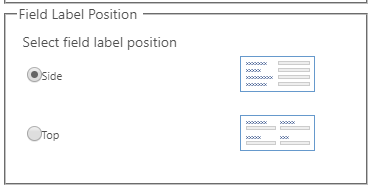
3. Field Label Position No Yes*
4. Field Label Alignment No Yes
5. Available on Phone Yes No
6. Show the label of this section on the form Yes Yes

Note*: Field Label Position

S.No. Sub Grid Properties UCI Web Client
1. Display Search Box Yes Yes
2. Panel Header Color No Yes
3. Show Chart Only No Yes
4. Display Index Yes Yes
5. Automatically Expand to use available space Yes* Yes*

Note*: Sub grid get expend till its height then start paging with Index.

S.No. Tab Properties UCI Web Client
1. Show the label of this tab on the form No Yes
2. Expand this tab by default No Yes
3. Visible by default Yes Yes
4. Tab Layout Yes Yes
5. Tab Column Width Yes Yes

Hope it helps!