Whenever we click on the lookup field it opens up the record whereas it wasn’t performed the same functionality in the CRM portal. Therefore, this is the objective to achieve.
Let’s get started without any further delay.
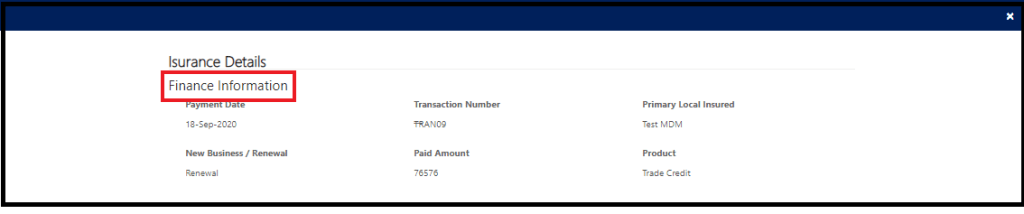
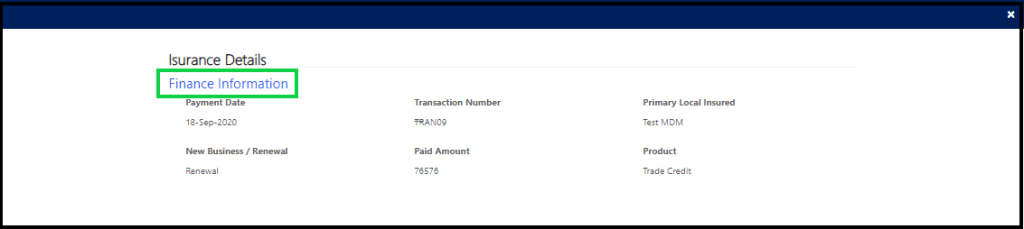
For example, I have Entity Form A and having lookup of entity B and want to open up a Entity form of B Entity on click of section header.
Finance Information should be Clickable and navigate to Entity Form of entity B
Step1: Inspect the element by pressing F12 and get the tag to enhance it.
Step2: Select the element in code and replace the tag with hyperlink tag(Please refer the below code) and place the code in additional settings under the ready function in Entity Form A and save it.
If you do wonder that how to get the Entity form url then please refer the note below.
Note: Entity Form URL=[rootWebSite]/_portal/modal-form-template-path/[portalId]?id=[recordId]&entityformid=[entityFormId]
I am working on Power Apps Portals from past few months during this I personally feel that there is a couple of the area which could be enhanced more to give flexibility to the portal maker in order to achieve user utterance.
I listed few points which should be introduced in future releases of Power Apps Portals.
S.No.
Wants More flexibility
1.
Business Rule can’t be applied to portal form. If Microsoft brings business rule/something similar to that to entity form to automate the common show/hide, require/none require fields in upcoming releases. It will reduce the repetitive coding work of portal maker.
2.
There is 15 minutes of time to happen sync between dynamics 365 CE and portal. It could be less or more sometimes, Perhaps 15 minutes time is documented in Microsoft document. This sync service should be synchronous because sometimes, user input on the portal and it does some calculation in the back end and doesn’t reflect immediately on the portal which kills the user experience.
3.
The New File data type is not yet accessible in the portal. The file data type should be available in the portal as well. The reason behind it, Recently I met a requirement where users want to attach multiple files to one note in Dynamics 365 CE and portal both. If I would have file data type in portal then I was pretty close to fulfill user requirements without any code.
4.
There is no way to take a backup of the portal yet. It is all waste, If we are unable to take a backup of individual components like a webpage, web template. Microsoft should bring something related to it.
5.
After so many MS support tickets Microsoft has given _services/about for quick cache refreshment but still, sometimes changes don’t reflect immediately. This could be more improvised.
6.
Odata service is available for retrieve call, It should be for CRUD operation tooso that we could have done more in the portal.
7.
Missing multi-select option set in the portal. 😦 as we miss in dynamics 365 before it’s arrival.
8.
How could we forget about PCF 😦 Badly, want to have the PCF control in the portal too.
I will update the list as and when I find more updates to the Power Apps Portals in the future.
Please leave a comment if you find any missing functionality or any frustrating behaviour with the Power Apps Portals which is not listed above and I will include those in the list.
Hope you are safe while wfh and enjoying your family:)
I am writing this article to explain how to configure custom entity for Global Search in powers apps portal. Microsoft has released this feature in wave 1 2020 portal release. With this feature, user can search across multiple entities and configure what column of entities would be searchable.
Note: This is subjected to change as the limit of the custom entities which can be configurable for global search is 10.
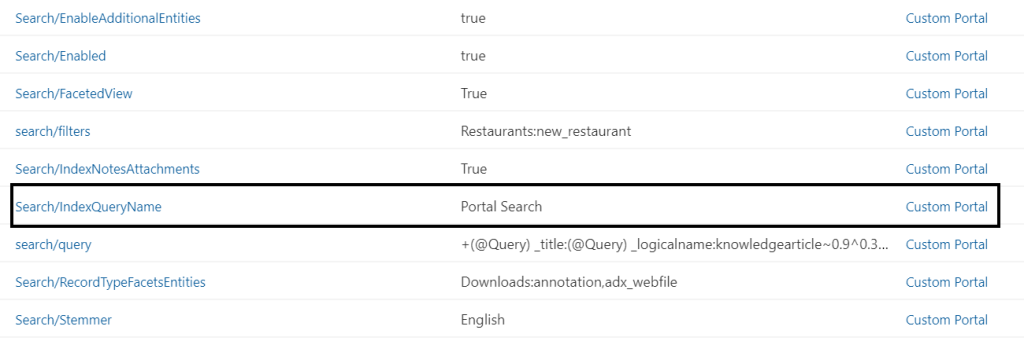
There are a couple of predefined records in “Site Settings” and “Content Snippets” which run the search in the portal and those are listed below:
Before start to configure the custom entity for search. Please make sure that all the records of “Site Settings” and “Content Snippets” are the same as mentioned above, some of the values(Header/Search/Label, Header/Search/ToolTip) may be different based on your requirement.
Let’s get going and follow the steps as below:
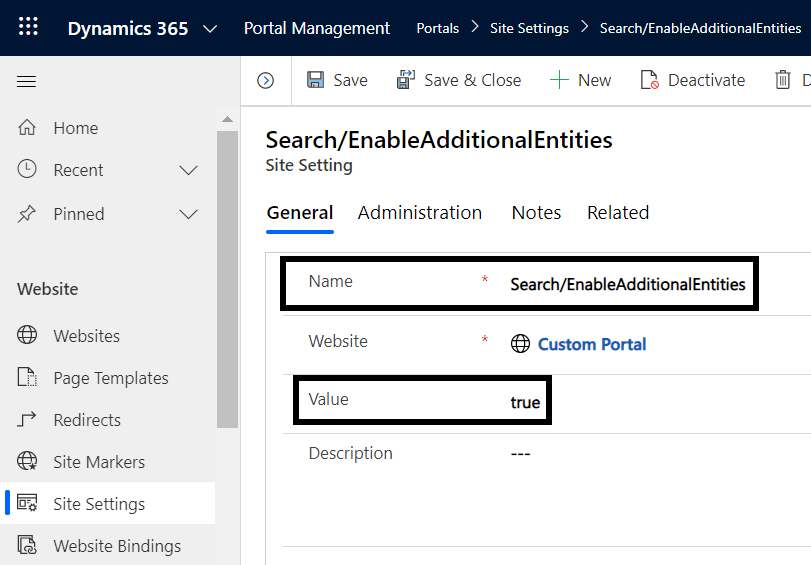
Step 1: Add Search/EnableAdditionalEntities of True value in site setting.
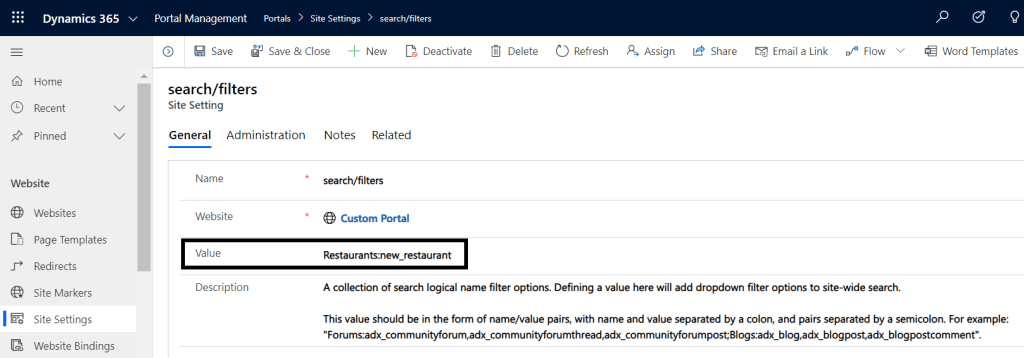
Step 2: create/update the search/filters setting, and add the value Restaurants:new_restaurant.
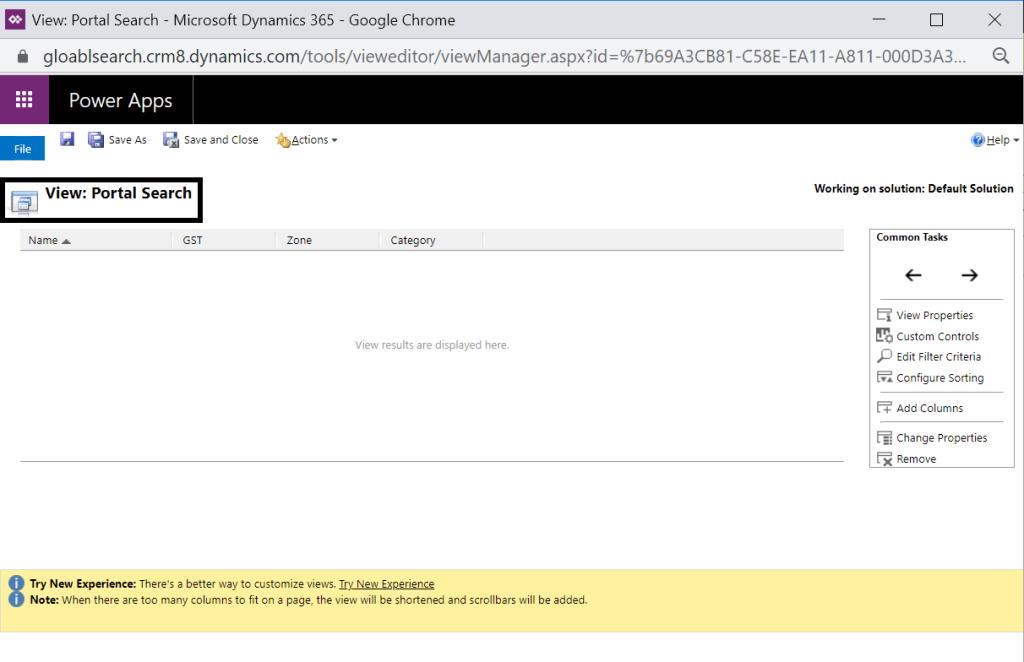
Step 3: create a “Portal Search” view to the corresponding entity for which you are configuring the global search and all the added column to view will be searchable in the search.
Tip*: “Portal Search” is the default view name in Search/Index/QueryName entry of site setting, If in case you want to change the view name other than Portal Search then please don’t forget to update the new view name in Search/Index/QueryName entry of site setting and you need to maintain the same view name across the entities for which you want to configure search. 🙂
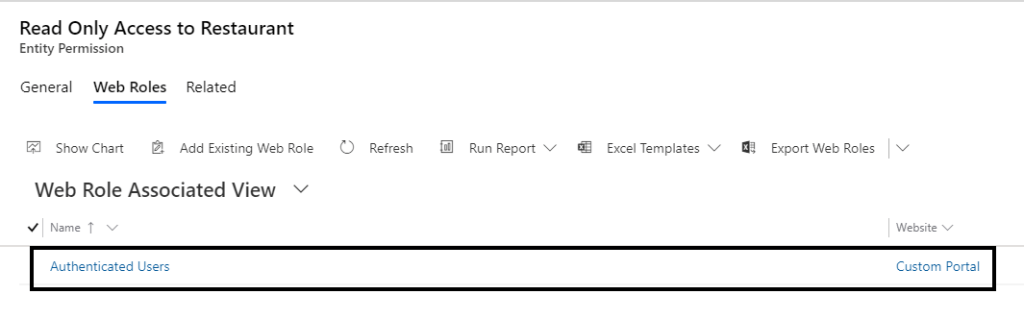
Step 4: Create/Update Entity Permission and associate web role(authenticated user) to it .
a)Entity Permission: Create/Update Entity Permission to the respective entity and you can set any scope as per your need, I have taken Global. Preferably, privileges should be Read only.
b) Go to the Related and assign Web role to it. Web role can be any of your choice if you want to show the result to anonymous user then assign anonymous role. Perhaps, it is not recommended due to data security concerns.
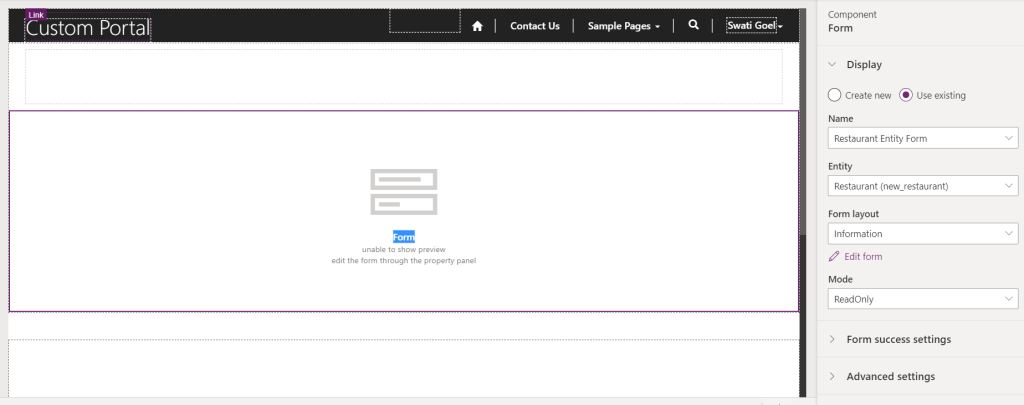
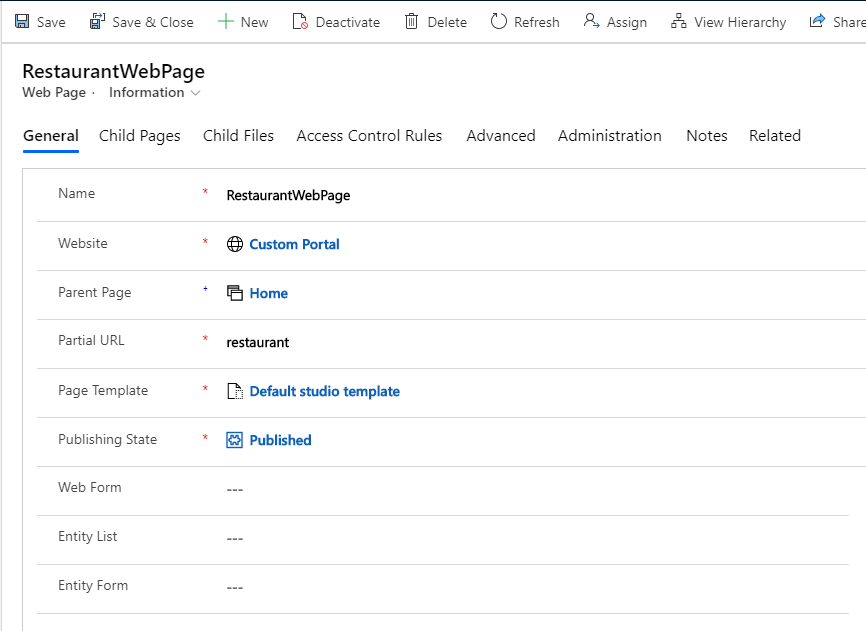
Step:5 Create search result web page to show your detailed information of entity record.
a) By attaching the Entity form. You can create your own web template as well and there don’t forget to pass the record id (I was completely new when I was configuring this and haven’t had idea how to pass the record id so just to make it ease for you :)). Here is the code
for the demonstration purpose, I used “Default Studio Template”
Screen from Portal Studioscreen from model driven app
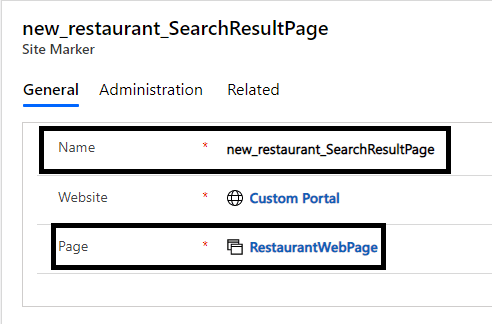
Step 6: Create a Site Maker record where you need to browse the search result page and name it as “entitylogicalname_SearchResultPage”
Now the time has come to “Clear cache” and “Rebuilt search index”
Therefore, I had covered all the steps to configure custom entity for Global search.In case you require any further assistance, can reach out to me on LinkedIn.
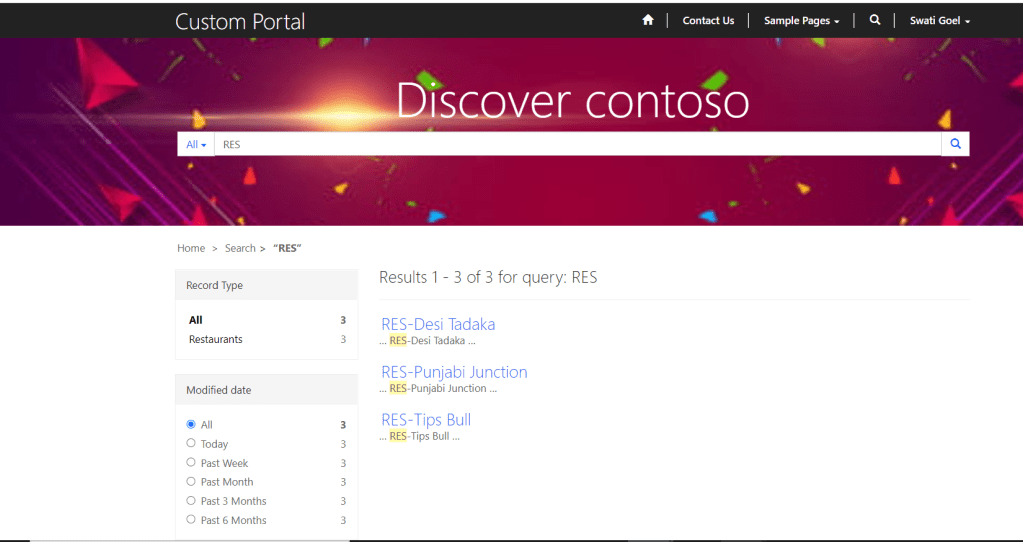
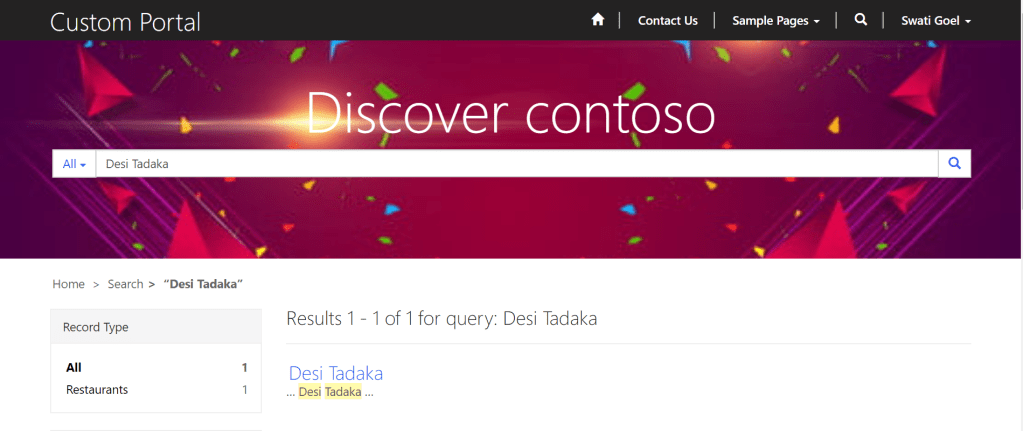
Oops,I forgot to show you the result. I typed RES and it showed me three records.
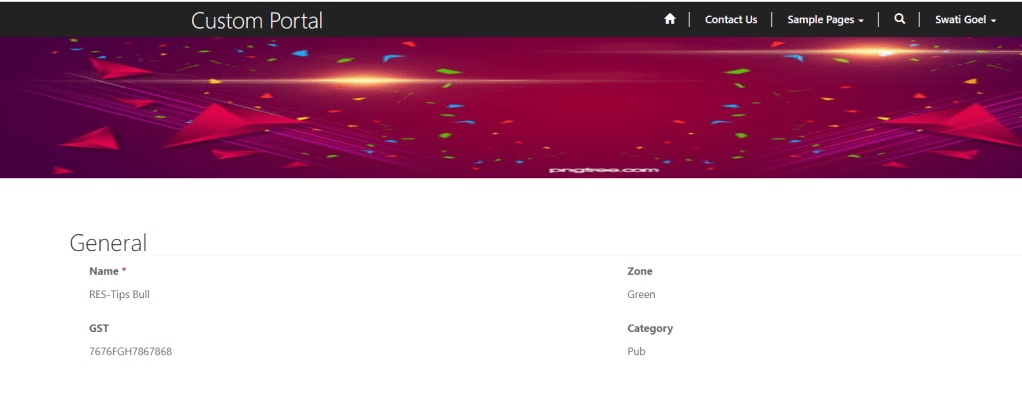
Now, clicked any of them and it will show the Search Result Page.
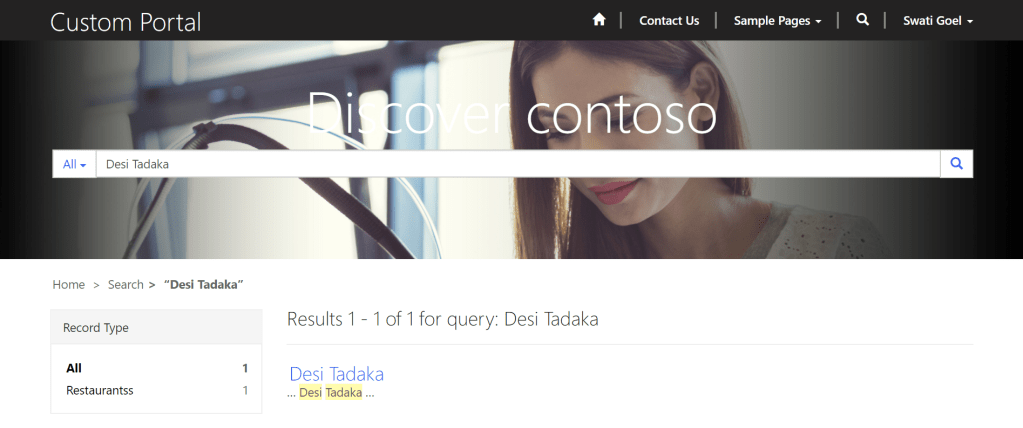
When we start to implement the client requirement in order to match the customer’s branding,the primary requirement is to the change the out-of-the-box search banner.
In this article, I am going to show you how to change the search portal banner in the few steps.
Before we start, you might have look at it –
Let gets started and please follow the steps as below:
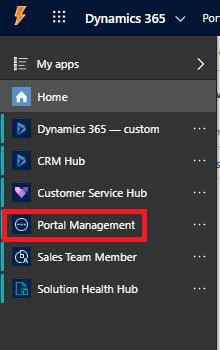
Step 1: Navigate to Portal Management
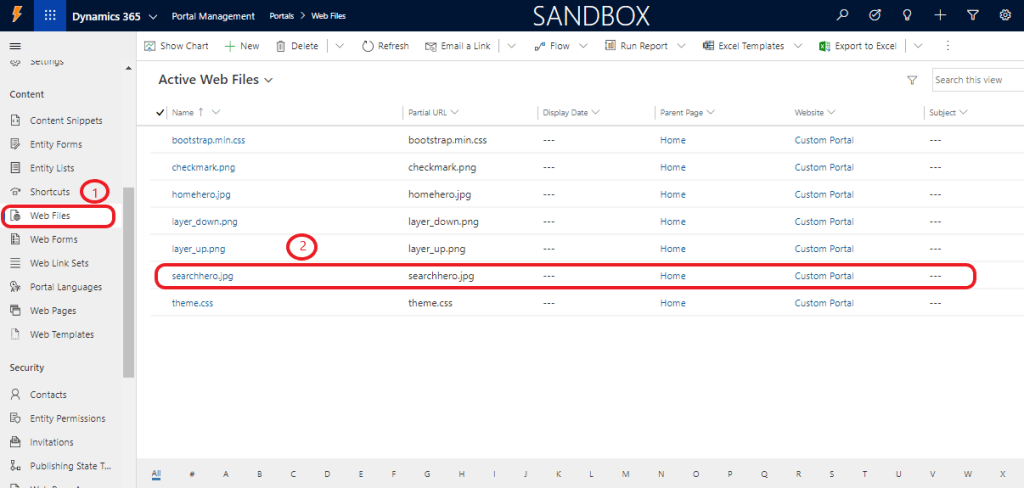
Step 2: Go to the “Web Files” and look for “searchhero.jpg” record.
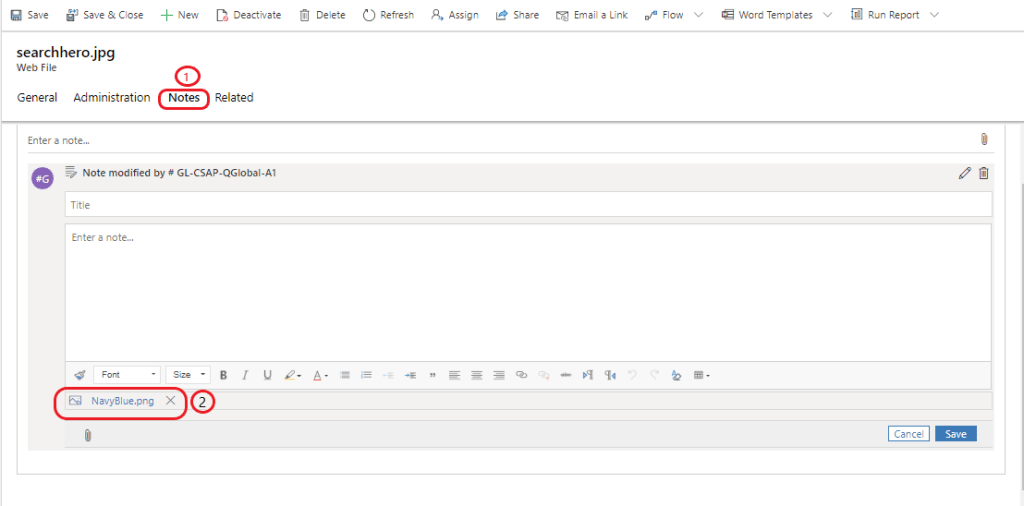
Step 3: Replace the Notes Attachment with the new search banner image.
Step 4: Clear Cache /_services/about or else Restart the portal and Press the Ctrl+F5 and visualize your change.
for Portal Banner, you can follow the same steps as above and by replacing the image, Notes’s GUID will remain same which will not cause an error during portal deployment.



 Deriving Dynamics 365