Hello Reader,
Hope you are enjoying festive season these days.
Whenever we click on the lookup field it opens up the record whereas it wasn’t performed the same functionality in the CRM portal. Therefore, this is the objective to achieve.
Let’s get started without any further delay.
For example, I have Entity Form A and having lookup of entity B and want to open up a Entity form of B Entity on click of section header.
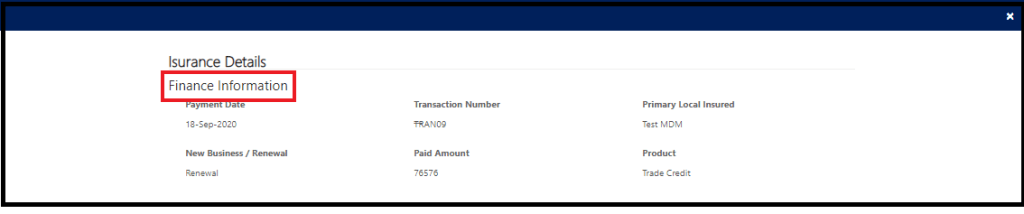
Step1: Inspect the element by pressing F12 and get the tag to enhance it.

Step2: Select the element in code and replace the tag with hyperlink tag(Please refer the below code) and place the code in additional settings under the ready function in Entity Form A and save it.
If you do wonder that how to get the Entity form url then please refer the note below.
Note: Entity Form URL=[rootWebSite]/_portal/modal-form-template-path/[portalId]?id=[recordId]&entityformid=[entityFormId]
$(document).ready(function ()
{
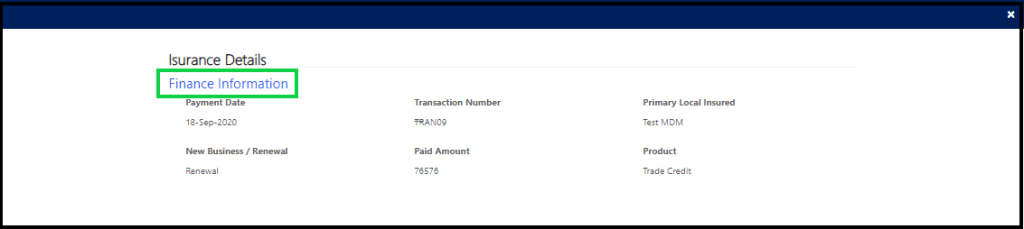
$("legend:contains(Finance Information)").replaceWith("<legend class='section-title'><a onclick='onSectionTitle()'>Finance Information</a></legend>");
});
function onSectionTitle()
{
window.open("[rootWebSite]/_portal/modal-form-template-path/[portalId]?id=[recordId]&entityformid=[entityFormId]");
}
Please pass portalId, recordId and entityFormId as per your environment.
Step 3: Clear the cache see the final result as below.
Hope it helps.
May the Dynamics power be with you.
 Deriving Dynamics 365